
Will an AI-written Swarmbot script work on another phone? Check the differences first
Before using a Swarmbot script on a second phone, ask AI to compare the starting screen, app state, and image templates. Try a small step on one test device before widening the run.
Swarmbot lets you save a repeated phone workflow as a script, but a script written for one phone needs a fresh screen check before you use it on another. This guide is for people who already have an AI-written Swarmbot script and want to try it on a second work phone. Open the script project in Swarmbot, select one authorized test device, and ask the script assistant to compare the two devices before changing any steps.
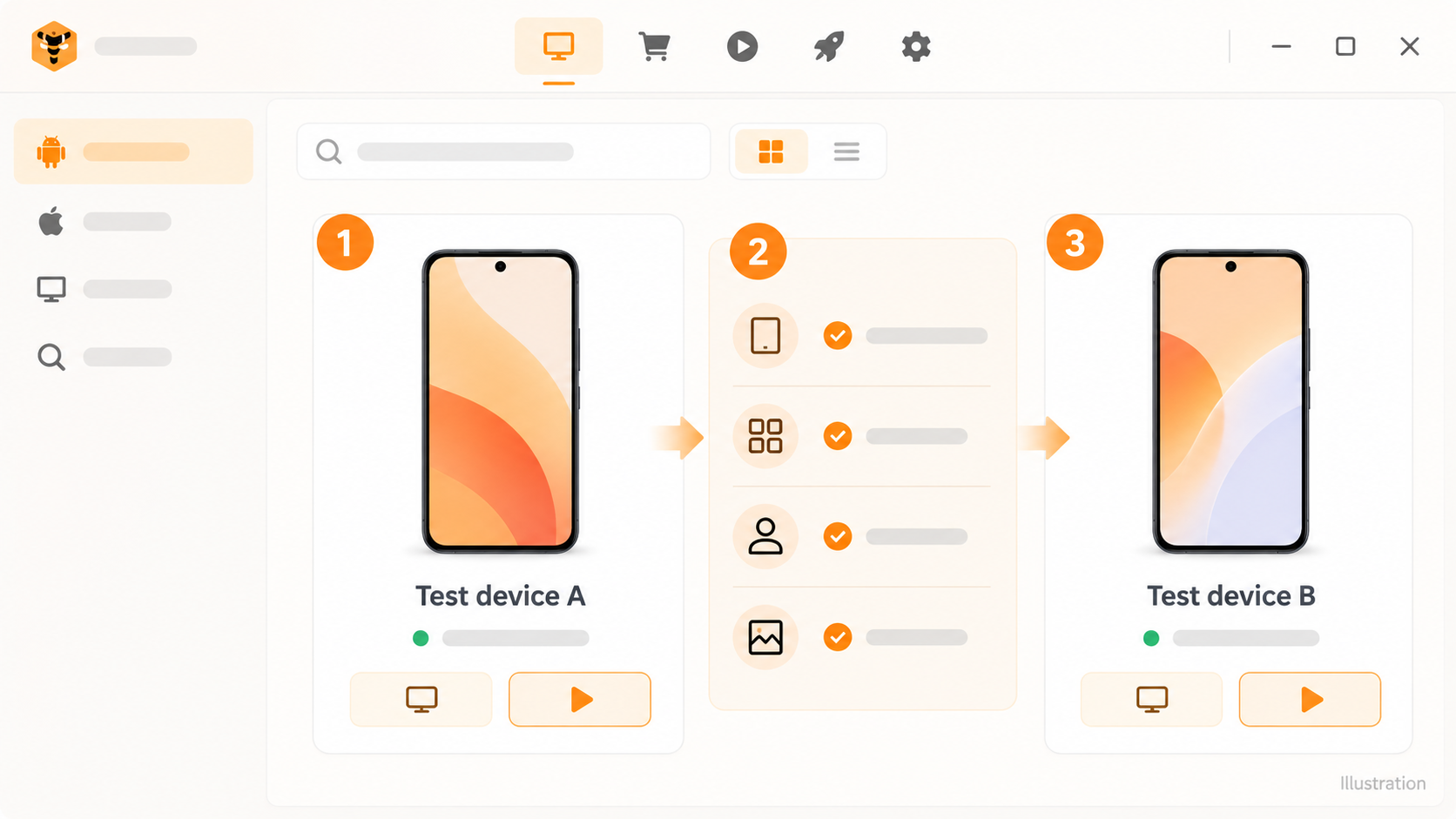
Illustration based on the Swarmbot device-list layout. The devices and checklist are fictional; this is not a record of a script run.
Tell AI what worked on the first phone
“Make this script work everywhere” gives the assistant little to compare. Instead, tell it which app screen the first phone started on and where the second phone is now. Check whether the app version, sign-in state, screen orientation, run inputs, and image resources match. If you share screenshots, keep the relevant controls visible and remove account details, messages, and customer information.
For example, ask the Swarmbot script assistant:
This script starts on the app home screen on device A and stops at the search results. I want to use it on device B. First review this project's steps and image resources. List the starting screen, sign-in state, orientation, and image targets the script assumes. I will add a redacted screenshot of device B. Tell me what I need to confirm on that phone and which steps might need changing. Suggest edits first; do not run the script or add more devices.
Now the assistant has a concrete comparison to make. Android's screen compatibility guidance explains why the same app can present different layouts across screen sizes and densities.
Recheck image crops on the destination phone
If the script finds buttons by image, its crop represents a particular screen appearance. Swarmbot's current script runtime does not automatically resize an image template for a different resolution or UI scale. A button can have the same meaning on both phones while appearing at a different size or position. Ask AI to compare the project's image resources with device B's current screen and identify which crops need to be made again from that phone. First check the reported match location; add the tap only after the match is right.
A device change does not automatically call for a complete rewrite. A different search term belongs in a run parameter. A changed button appearance calls for an updated image crop. Different navigation or sign-in state calls for a change to the affected steps.
Test one small step before a wider run
On device B, open the app to the agreed starting screen. Try a short read-only or easily reversible step, such as confirming the page and reaching search results. Leave out sending, deleting, submitting, and payment actions. Compare the screen and Swarmbot's execution result with what you expected. Send AI the first mismatch, a redacted screenshot, and the error shown, then ask it to revise only that part.
Once the starting screen, images, and result match on device B, expand the run gradually. If a colleague will use the project, make sure its resources and inputs are included in the package. The project handoff guide covers moving files to another computer or account; this guide focuses on screen differences on another phone.